Galactic Racer No Sound: Restore Race Audio and Check Window Focus
Troubleshoot missing Galactic Racer audio after a window or monitor change, preserve useful race cues, and separate silence from unwanted NPC chatter.
By Star Wars Galactic Racer Guide editorial team Last updated · Published
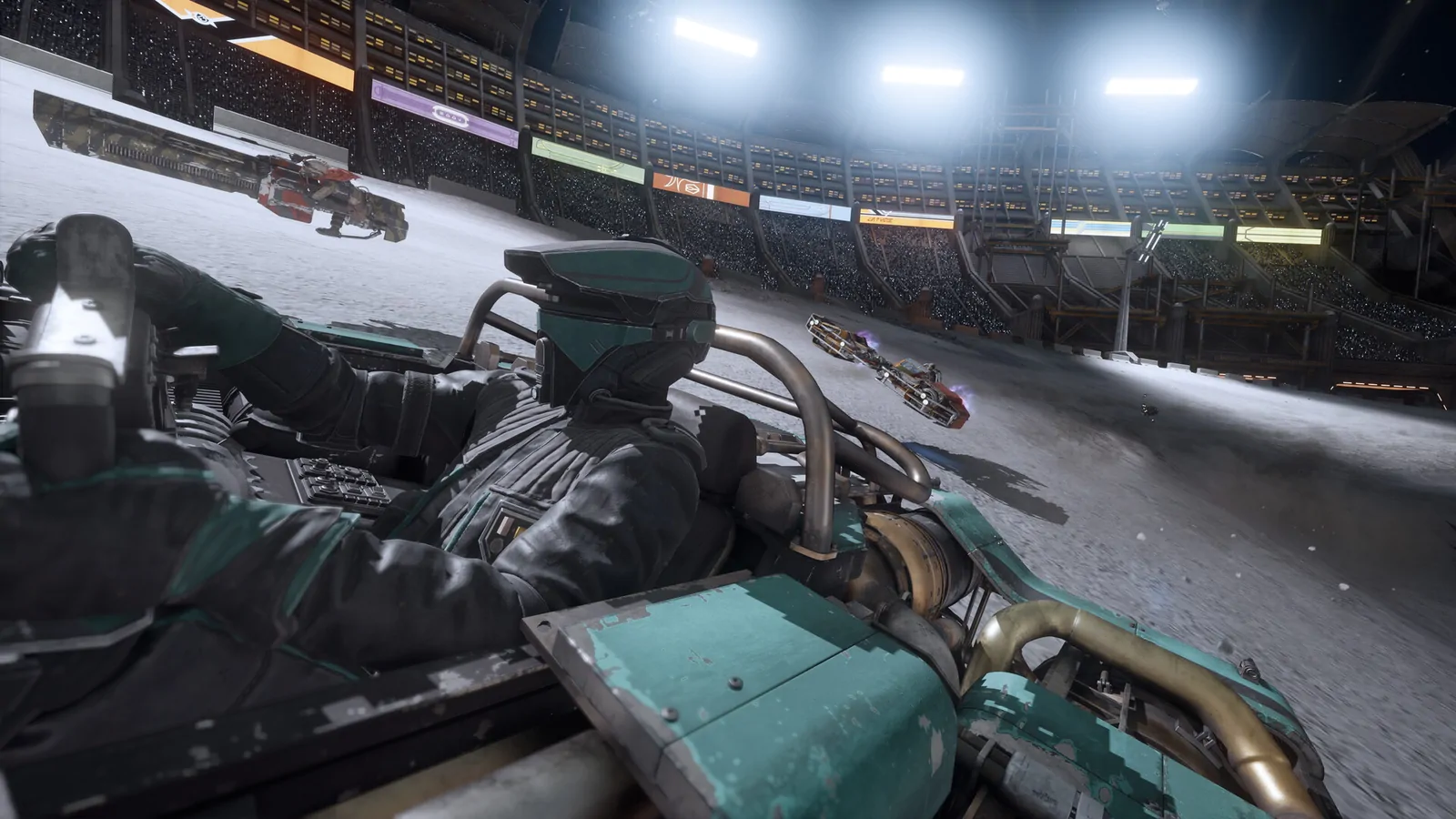
What should you try when Galactic Racer has no sound?
First check whether the game is the active window and whether Windows is sending its audio to the device you are using. A recent player discussion describes sound returning after bringing the game back into focus on a second-monitor setup, but that is a reported workaround, not a guaranteed fix. Test it from a menu or a manageable practice session. Then distinguish complete silence from quiet effects, missing dialogue, or unwanted NPC chatter, because those symptoms lead to different checks.
Your goal is usable race information: a clear sense of what your vehicle and surroundings are doing without an uncomfortable overall volume. Do not turn every sound control to maximum as the first test. If another application or a restored output device suddenly becomes audible, that can produce an unpleasant jump in volume. Start at a moderate listening level and compare one channel or device at a time. The result should help you race consistently, not merely prove that a speaker can make noise.
Step 1: Identify the missing part of the sound
Start at a menu and listen for any sound the game normally plays there. Then enter a familiar event if necessary and compare vehicle sound, effects, music, and voices. Complete silence suggests a different branch from clear engines with absent dialogue. A quiet mix is different again. Use categories you can actually distinguish instead of deciding the whole audio system is broken because one character did not speak during a particular race. Some sounds are contextual and may not occur in every situation.
Compare another application through the same headphones or speakers at a moderate volume. If that application is silent too, inspect the device connection and Windows output before changing the game’s settings. If other audio works, open Windows Volume Mixer and look for the running game. Check whether it is muted or routed differently from the application you just tested. Keep the physical device constant for this comparison; changing the headset, monitor, and game controls together makes the result unnecessarily difficult to interpret.
Step 2: Recheck window focus and monitor audio
If the problem followed a window switch, click back into the game or use your normal application-switching method to make it active. Listen before changing anything else. On a multiple-monitor setup, also check whether a monitor’s audio endpoint became the selected output when you moved or reconnected a display. A monitor can appear as an audio destination even when the speakers you intended to use are connected elsewhere. Select the device you actually want rather than assuming the current default is unchanged.
Treat a successful focus change as a practical recovery, not a diagnosis of every future failure. The player report does not establish which combination of display mode, monitor, operating-system setting, and driver caused the problem. If your audio returns, test normal menu navigation and one short race segment before declaring the session ready. If it does not, leave the window active while continuing the output-device checks. Rapidly switching between applications while changing settings can make an intermittent focus-related symptom harder to distinguish from a separate device issue.
Step 3: Inspect the game’s current audio controls
Open the sound or audio options available in your installed build and read the labels. Check the master level first, followed by any separate categories the menu actually offers. This guide does not invent an NPC-bark toggle or promise independent control of every voice. If the available sliders are broader than the sound you want to change, note that limitation before reducing a channel that also carries information you need. Use small adjustments and compare them in the same event.
If the problem is quiet effects rather than silence, lower competing categories where the menu permits it before raising the overall level. For example, a mix with loud music can make another category feel absent even when it is playing. That is a listening comparison, not a claim about the game’s internal mixing algorithm. Check the result during movement, with traffic nearby, rather than judging it only while stationary. Keep enough detail to recognize changes in the race without relying on a single sound as your only warning.
Step 4: Test a familiar route before a multiplayer Tour
Use a known event to judge whether the restored sound helps you drive. Listen while accelerating, changing direction, passing nearby objects, and sharing space with another racer. You are checking consistency and clarity rather than measuring a fastest lap. If the audio cuts out at the same action or location, repeat that narrow comparison once. If it remains available through the route, move on to normal play instead of repeatedly replacing settings that are already doing their job.
Avoid making an important multiplayer Tour your first device experiment. A headset disconnect or output switch can divert attention from the track, and opening Windows controls during a live race adds another distraction. Establish the device and basic mix beforehand. If the problem appears only during multiplayer, compare that observation with your working practice session. Do not automatically attribute it to the party size or network connection; the useful fact is the difference between the two contexts, with the same device and sound settings kept in place.
Step 5: Separate chatter preferences from missing audio
Players have also asked for a way to turn off NPC barks and mid-race chatter. That request is about preference and distraction, not evidence that a dedicated switch exists. Check your current audio menu and use only the controls it provides. If dialogue shares a channel with other voices, lowering it may change more than the particular line you dislike. Compare the tradeoff in practice and keep visual race information readable instead of depending on commentary to tell you everything that matters.
Do not assume a mod or configuration edit is required just because a menu lacks the exact separation you want. A broader volume adjustment may be sufficient for your own session, or you may prefer to leave it unchanged and ask for a future option. The important boundary is honest: a desired toggle is different from a verified feature. For driving consistency after adjusting the mix, use keyboard preset practice. For organizing a session once your audio is stable, use the six-player Tour guide.
FAQ: What if sound disappears again?
Repeat the shortest successful check first: active window, intended output device, then the game’s entry in Volume Mixer. If the same window transition repeatedly triggers silence, you now have a useful reproduction rather than an unexplained failure. Include whether another application still plays through the same device. A clear report can identify a display or focus pattern without claiming that another player’s workaround repairs every machine. Keep your working settings recorded so the next session begins with a known device and a comfortable listening level.